Main Menu
30 Apr 20251 min readUnreal Engine 5.5
- Blueprint
- UI

I started by designing the UI layout using the UMG Designer tab. This involves placing widgets such as an Image for the background, a Vertical Box containing Text and multiple Buttons (e.g., Play, Options, Quit), all arranged inside a Canvas Panel. The Vertical Boxes are named and set as variables for later use in the scripting stage.
Buttons are duplicated, renamed, and visually customized. I update button Text fields, assign Hover Tint Colors, and set Fill for size consistency. UI elements are organized using the Hierarchy panel for easy access, and ZOrder values are used to manage visual layering (e.g., keeping menus above the background image).
The Main Menu is visible by default, while the Options Menu is hidden. Both menus are placed on the same Canvas Panel and positioned to overlap, allowing one to be shown while the other is hidden via blueprint logic. This sets the groundwork for toggling between them using button interactions.
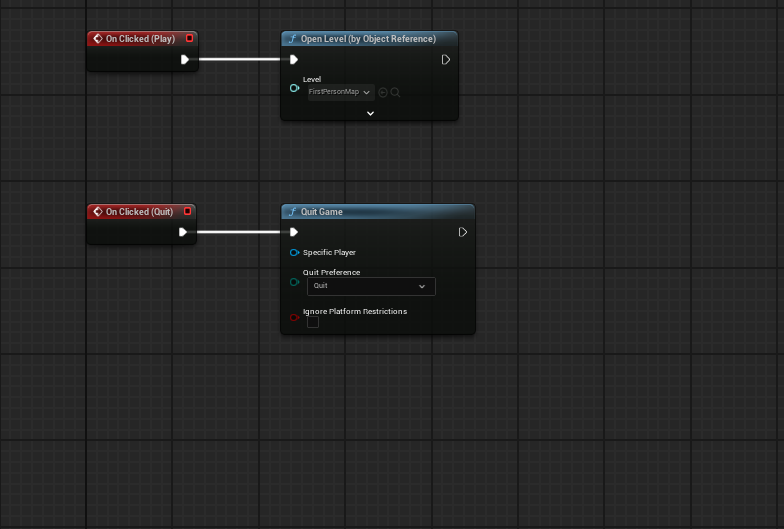
In the Graph tab, each button's OnClicked event is used to control the flow: Play: Opens the game level and removes the menu. Options: Switches visibility between Main and Options menus. Resolution Buttons: Run console commands like r.setRes 1280x720. Quit: Executes the Quit command to close the game. Return: Reverts visibility back to the Main Menu.
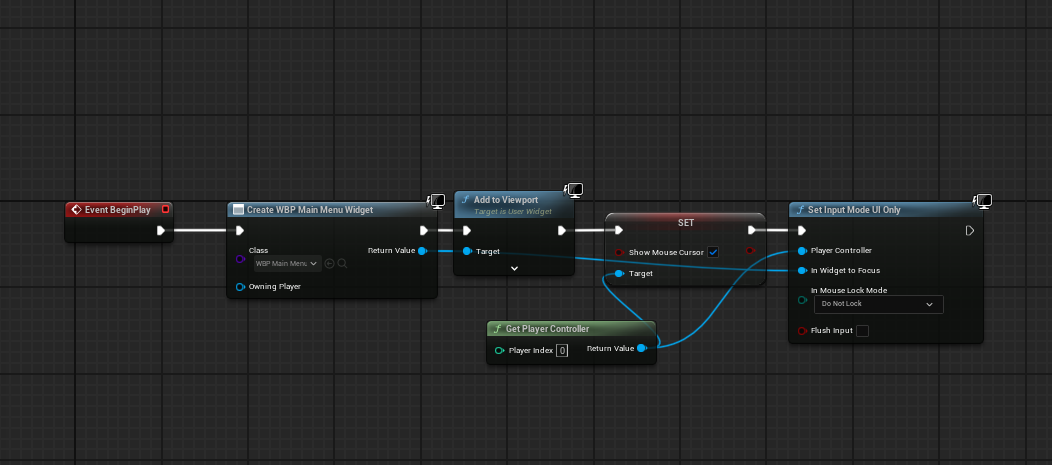
In the Level Blueprint, the menu is created and added to the viewport at game start, showing the mouse cursor for interaction. The FirstPersonCharacter Blueprint ensures the player can’t move or shoot during the menu. The World Settings are configured to assign the correct Game Mode and Default Pawn to prevent gameplay before clicking “Play.”